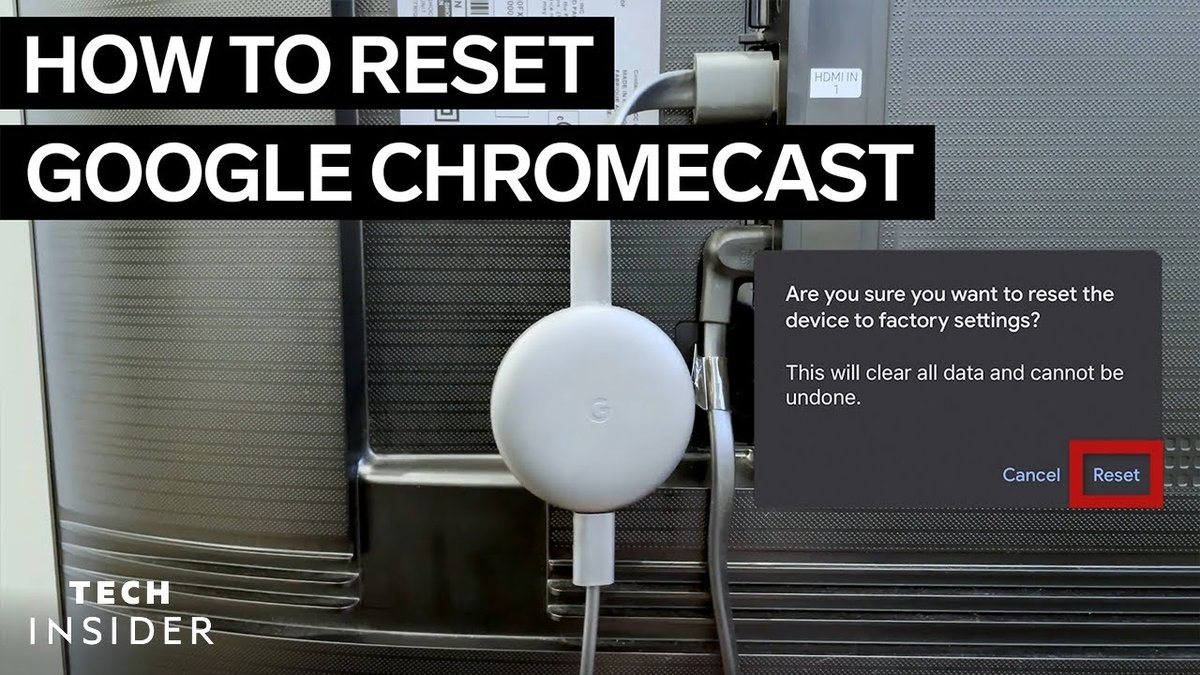
When your favorite show buffers endlessly, your smart display won't connect, or your Chromecast simply refuses to respond, a factory reset might be the solution that springs to mind. But Understanding When and Why to Reset Your Chromecast is crucial, as it's not always the first step. Think of it as hitting the "reset" button on your entire streaming experience, wiping away accumulated glitches and giving your device a fresh start. This guide will walk you through the decision-making process, the "how-to," and what to expect when you take the plunge.
At a Glance: When and Why to Reset Your Chromecast
- When to Consider a Reset: After trying basic troubleshooting (restarting, checking Wi-Fi, updating software) for persistent connectivity issues, unresponsiveness, streaming glitches, or if you're selling/gifting the device.
- Why a Reset Helps: It clears out corrupted software, forgotten Wi-Fi settings, and conflicting configurations, restoring your Chromecast to its factory-fresh state.
- Two Ways to Reset: You can use the physical button on the Chromecast itself (a "hard" reset) or initiate it through the Google Home app (a "soft" reset).
- What You'll Need: Your Wi-Fi network name and password, and access to your Google account to set it up again.
- What a Reset Doesn't Do: It doesn't delete your Google account or data from Google's servers; you'll simply re-link it.
What is a Chromecast, Anyway? Your Digital Streamer Explained
Developed by Google, Chromecast is a series of digital media players designed to bring the vast world of online content to your television. Essentially, it transforms your TV into a smart TV, allowing you to "cast" audio and video from your mobile device, tablet, or computer directly onto the big screen. Whether it's binge-watching Netflix, catching up on YouTube, or sharing vacation photos, Chromecast acts as the bridge between your smart device and your TV, all controlled through the intuitive Google Home app. Models range from the original Chromecast (1st and 2nd Gen) to the more powerful Chromecast Ultra, and the latest Chromecast with Google TV, offering a diverse ecosystem for every streaming need.
Why You Might Need to Reset Your Chromecast: Pinpointing the Problem
A factory reset is a powerful tool, but it's not a magical cure-all, nor should it be your first resort. It's best reserved for persistent issues that other troubleshooting steps haven't fixed. Here are the common scenarios where a reset proves most beneficial:
Stubborn Connectivity Issues
One of the most frequent headaches Chromecast users face is connectivity. If your device constantly drops its Wi-Fi connection, struggles to link to your home network, or simply shows "offline" despite being plugged in, a reset can often clear the slate. It effectively removes any corrupted network settings that might be causing interference, allowing you to establish a fresh, stable connection. This is particularly relevant when you've exhausted other troubleshooting steps for troubleshooting common Wi-Fi issues.
Unresponsive Device Behavior
Picture this: you're trying to cast a video, but your Chromecast isn't responding to commands from your phone or tablet. The screen might be frozen, or it simply ignores your taps and clicks. This unresponsiveness can be incredibly frustrating. A reset can often resolve these internal software glitches, bringing your device back to a responsive state where it correctly interprets your commands.
Software Update Headaches
Software updates are crucial for performance and security, but sometimes they can go awry. If your Chromecast seems stuck during an update, fails to apply it correctly, or starts acting strangely immediately after an update, a factory reset can be a clean way to revert to a stable software version, or prepare the device for a fresh, untainted update installation. It's like giving your device a clean canvas to apply new paint. For guidance on ensuring your device is always current, you might find it helpful to learn how to update your Chromecast firmware.
Moving to a New Network
Did you recently change your Wi-Fi router, update your network name (SSID), or move to a new home with a different internet provider? Your Chromecast remembers your old Wi-Fi settings. While you can typically update these via the Google Home app, a reset completely wipes any previously stored Wi-Fi configurations. This makes it much easier to connect to a new network without potential conflicts or lingering issues from old settings.
Buffering and Streaming Glitches
There's nothing more annoying than your content constantly buffering, lagging, or displaying poor video quality. While a slow internet connection is often the culprit, sometimes the Chromecast's internal software can contribute to these streaming woes. A reset can clear out any cached data or software conflicts that might be hindering its ability to optimize your streaming performance and deliver a smooth streaming experience.
General Software Malfunctions
Like any electronic device, Chromecast relies on its internal software (firmware) to function correctly. Over time, this software can become outdated, corrupted, or develop minor bugs that manifest as inconsistent performance. A factory reset effectively reinstalls the core software, removing any accumulated digital "dust" and restoring the device to its default, stable operating condition.
Setup and Account Linking Troubles
When you first get a Chromecast, or after a move, you need to set it up and link it to your Google account. If you're repeatedly encountering errors during this initial setup, or struggling to link your device to your Google account, a factory reset can give you a clean slate. This eliminates any previous, possibly incomplete, setup attempts that might be causing conflicts, allowing you to start the process fresh.
Before You Hit Reset: Essential Safeguards and First Steps
Before you commit to a factory reset, it's vital to try less drastic measures. A reset is a comprehensive solution, but many common issues can be resolved with simpler troubleshooting.
The "Unplug and Replug" Trick
This might sound overly simple, but a quick power cycle often works wonders. Unplug your Chromecast from its power source (and the TV's HDMI port) for about 30 seconds, then plug it back in. This soft reboot can clear temporary glitches and re-establish connections without wiping any data.
Check for Software Updates
Ensure your Chromecast is running the latest software. Sometimes, a bug you're experiencing has already been patched in a newer version. You can check for updates via the Google Home app. An outdated device might struggle with newer streaming protocols or app versions.
Reset Your Wi-Fi Connection
If connectivity is the issue, try restarting your home router and modem. Unplug them for a minute, then plug them back in. This often resolves network-wide issues that might be affecting your Chromecast. Also, try "forgetting" your Wi-Fi network on your casting device (phone, tablet) and reconnecting.
Gather Your Info: Wi-Fi Credentials & Google Account
A factory reset means you'll have to set up your Chromecast from scratch. Before you begin, make sure you have:
- The exact name (SSID) of your Wi-Fi network.
- Your Wi-Fi network password.
- The login credentials for the Google account you wish to link to the Chromecast.
Having these details handy will make the post-reset setup much smoother.
Consider Other Devices
Is the problem limited to your Chromecast? Try casting from a different device (another phone, tablet, or computer) to see if the issue persists. If it works from another device, the problem might be with your casting device itself, not the Chromecast. Similarly, try casting to another device if you have one.
How to Perform a Factory Reset on Your Chromecast
Once you've decided a factory reset is necessary, you have two primary methods, both effectively doing the same thing: restoring your device to its original factory settings. The process is largely similar across all Chromecast models, including the 1st Gen, 2nd Gen, Chromecast Ultra, and Chromecast with Google TV. If you're looking for a quick guide, you can always refer to how to reset your Chromecast.
Method 1: The Hardware Button Reset (The "Hard" Reset)
This method involves physically interacting with your Chromecast device and is often the go-to when the device is completely unresponsive or you can't access it through the app.
- Ensure Your Chromecast is Powered On: Make sure your Chromecast is plugged into an HDMI port on your TV and connected to a power source. You should see the Chromecast home screen on your television.
- Locate the Reset Button: On most Chromecast models, the physical reset button is a small, often recessed button situated near the power port. Its exact placement can vary slightly by model, so you might need to feel around the device.
- Press and Hold the Button: With the Chromecast powered on, press and hold this physical button firmly. You'll need to keep it pressed for at least 25 seconds.
- Observe the LED Light: As you hold the button, the LED indicator light on your Chromecast will begin to flash yellow. This signals that the reset process has initiated.
- Release When White: Continue holding the button until the LED light turns solid white. Once it's solid white, you can release the button.
- Automatic Reboot: Your Chromecast will now automatically restart and begin the factory reset process. This may take a few minutes.
- Prepare for Setup: Once the reset is complete, your TV screen will display the setup prompt, indicating your Chromecast is ready to be configured again.
Method 2: Resetting via the Google Home App (The "Soft" Reset)
This method is more convenient if your Chromecast is still partially functional and connected to your network, as it allows you to initiate the reset from your phone, tablet, or even a computer. It's typically done through the full Google Home app guide.
- Open the Google Home App: On your smartphone, tablet, or computer, launch the Google Home app. Ensure the device you're using is connected to the same Wi-Fi network as your Chromecast.
- Select Your Chromecast Device: Within the app, navigate to the list of your devices. Find the specific Chromecast you wish to reset and tap on its icon to open its settings.
- Access Device Settings: Look for the "Settings" icon, usually represented by a small gear or cogwheel, typically located in the top-right corner of the device's screen within the app. Tap this icon.
- Find the Factory Reset Option: Scroll down through the settings menu. You'll typically find the "Factory reset" or "Reset" option under a section like "Device information" or "Device settings."
- Confirm the Reset: A confirmation prompt will appear, asking you to confirm that you want to factory reset your Chromecast. Tap "OK" or "Yes" to proceed.
- Complete the Process: Your Chromecast will now initiate the reset, factory wiping its data, and then restart. Once it's done, it will be ready for a fresh setup, just as if you had used the hardware button method.
What Happens When You Reset Your Chromecast? The Impact Explained
Understanding the implications of a factory reset is important, especially if you're concerned about your personal data.
Restoring to Factory Settings
The primary effect of a reset is to revert your Chromecast to its original, out-of-the-box state. This means:
- All custom settings are erased: Any personalized Wi-Fi networks, device names, wallpaper settings, and linked casting preferences will be cleared.
- Corrupted software is purged: Any accumulated bugs, glitches, or software conflicts that have been causing issues are removed, giving the device a clean slate.
- Cached data is wiped: Temporary files that applications use for faster loading are removed, which can sometimes resolve performance issues.
Essentially, it's like installing a fresh copy of its operating system, removing all user-configured elements.
Your Google Account Data is Safe
A common misconception is that a factory reset will delete your Google account or associated data. This is not the case. Your Google account information (such as your subscriptions, viewing history on services like YouTube, or linked payment methods) is stored securely on Google's servers, not directly on the Chromecast device itself.
After a reset, you will simply need to re-link your Google account during the setup process. None of your personal Google data will be lost.
Selling or Gifting Your Device
If you're planning to sell your old Chromecast or give it away to a friend or family member, a factory reset is an absolute must. This ensures that all your personal information, Wi-Fi passwords, and linked accounts are completely wiped from the device, protecting your privacy and providing the new owner with a truly fresh start.
Getting Your Chromecast Back Online After a Reset
Once the reset process is complete, your Chromecast will essentially be a "new" device, ready for its first setup. Here's how to get it back up and running:
- Plug It In: Reconnect your Chromecast to an available HDMI port on your TV and ensure it's plugged into a power source. Turn your TV to the correct HDMI input.
- Open Google Home: On your smartphone, tablet, or computer, open the Google Home app. The app should automatically detect a new Chromecast device ready for setup.
- Follow the On-Screen Prompts: The Google Home app will guide you through a series of simple steps. This typically involves:
- Confirming the device you're setting up.
- Connecting it to your Wi-Fi network (this is where you'll need your Wi-Fi name and password).
- Linking it to your preferred Google account.
- Giving your Chromecast a name (e.g., "Living Room TV").
- Install Updates: During the setup process, the Chromecast may check for and install any available software updates. Allow this to complete to ensure you're running the latest and most stable firmware.
- Start Casting: Once the setup is complete, you're ready to start casting your favorite content again! Try casting content from your phone to your TV to verify everything is working smoothly.
Troubleshooting Common Post-Reset Issues
Even after a factory reset, you might encounter a few lingering issues. Don't despair; here are solutions to common post-reset problems:
Still No Wi-Fi Connection?
- Double-Check Password: The most common culprit is an incorrect Wi-Fi password. Re-enter it carefully, paying attention to capitalization and special characters.
- Router Reboot: If you haven't already, perform a full reboot of your Wi-Fi router and modem.
- Router Settings: Access your router's settings and ensure that features like "AP Isolation" or "Client Isolation" are disabled, as these can prevent devices on your network from communicating.
- Distance/Interference: Ensure your Chromecast is within a reasonable range of your Wi-Fi router and that there aren't too many physical obstructions or sources of interference (like microwaves or cordless phones).
Google Account Linking Woes
- Verify Credentials: Ensure you're entering the correct username and password for your Google account.
- App Restart: Try closing and reopening the Google Home app, or even restarting your smartphone/tablet.
- Internet Connection on Phone: Make sure the device you're using for setup (phone/tablet) has a stable internet connection itself.
- Temporary Server Issues: Rarely, Google's servers might experience a temporary hiccup. Wait a few minutes and try again.
Third-Party Casting App Problems
If you're using third-party apps for casting and they're not working correctly after the reset:
- Reinstall the App: Try uninstalling and then reinstalling the problematic third-party app on your smartphone or tablet. This ensures you have the latest version and a fresh installation.
- App Permissions: Check the app's permissions on your device to ensure it has all necessary access to your network and Chromecast.
- Chromecast Compatibility: Confirm the app officially supports Chromecast, as some older or niche apps may have limited or no compatibility.
Beyond the Reset: Tips for Optimal Streaming
A factory reset is a great way to resolve persistent issues, but maintaining good streaming hygiene can prevent many problems from arising in the first place.
Ensure a Strong, Stable Wi-Fi Connection
Your Wi-Fi network is the backbone of your Chromecast experience. For optimal performance:
- Placement Matters: Position your router in a central location, away from obstructions and other electronics that can cause interference.
- Signal Strength: Use a Wi-Fi analyzer app to check the signal strength around your Chromecast. If it's weak, consider a Wi-Fi extender or mesh system.
- Bandwidth: Ensure your internet plan has sufficient bandwidth for your streaming habits, especially if multiple devices are used simultaneously.
Keep Your Chromecast Software Up-to-Date
Google regularly releases software updates for Chromecast to improve performance, add new features, and patch security vulnerabilities. While updates are often automatic, occasionally manually checking via the Google Home app can ensure your device is running optimally. Always allow updates to complete without interruption.
Invest in Quality HDMI
While less common, a faulty or low-quality HDMI cable can sometimes cause video glitches, signal drops, or even prevent your Chromecast from displaying correctly. If you're using an older or generic HDMI extender, consider upgrading to a newer, certified high-speed HDMI cable, especially if you own a Chromecast Ultra or Chromecast with Google TV that supports 4K streaming.
Final Thoughts: Empowering Your Streaming Experience
Understanding When and Why to Reset Your Chromecast equips you with a powerful troubleshooting tool, transforming frustration into confident problem-solving. While it shouldn't be your first response, knowing when and how to perform a factory reset empowers you to tackle persistent issues head-on, ensuring your streaming experience remains smooth, responsive, and thoroughly enjoyable. Treat your Chromecast well, understand its quirks, and you'll keep the entertainment flowing seamlessly.