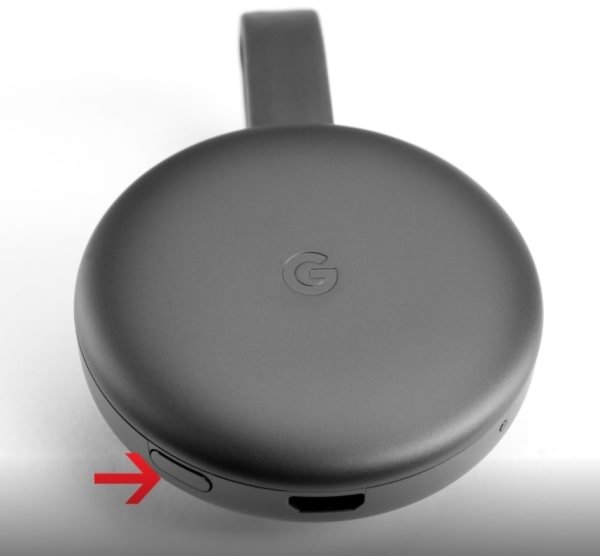
A flickering screen, an endlessly spinning wheel, or the dreaded "device not found" message – few tech frustrations hit quite like a misbehaving Chromecast when you're just trying to unwind. Your first instinct might be to reach for that reset button, convinced a clean slate is the only solution. But hold that thought. While a factory reset can resolve many issues, it's often an unnecessarily drastic measure that wipes your settings and forces a complete re-setup.
Before you commit to the digital equivalent of hitting the nuclear option, let's walk through a comprehensive guide to Troubleshooting Chromecast Issues Before You Resort to a Reset. As a seasoned journalist and tech expert, I've seen countless streaming glitches, and I can tell you that most Chromecast woes can be fixed with a few smart, targeted adjustments, saving you time and the hassle of starting from scratch.
At a Glance: Your Quick Fix Cheat Sheet
- Start Simple: Always begin with a power cycle (unplug, wait, replug) of both your Chromecast and your Wi-Fi router. It solves more problems than you'd think.
- Check Your Network: Ensure your Chromecast and the device you're casting from are on the same Wi-Fi network (and ideally, the same band—2.4GHz or 5GHz).
- Update Everything: Verify that your Google Home app, casting app, and Chromecast firmware are all up-to-date.
- Power Matters: Use the original power adapter and cable, or a reliable alternative that meets the power requirements. Underpowered Chromecasts are grumpy Chromecasts.
- HDMI Hunt: Try a different HDMI port on your TV, or even a different TV if possible, to rule out port issues.
- Isolate the Issue: Determine if the problem is specific to one app, one casting device, or all media on your Chromecast.
- When to Reset (Eventually): Only consider a full factory reset if all other troubleshooting steps fail and the issue is persistent or device-wide.
Why the Hesitation? Understanding What a Reset Really Does
Imagine your Chromecast as a tiny, dedicated computer. When you perform a factory reset, it's like erasing its entire memory and reinstalling its operating system from scratch. This means:
- All custom settings are gone: Wi-Fi credentials, linked Google accounts, device preferences, Ambient Mode photo albums – poof.
- Installed apps are uninstalled (for Google TV models): You'll have to redownload and re-login to all your streaming services.
- It takes time: You'll need to go through the entire setup process again via the Google Home app, connecting to Wi-Fi, linking accounts, and configuring everything just the way you like it.
Given these implications, a full reset should always be your last resort. Our goal here is to arm you with the knowledge to diagnose and fix the most common problems without putting your Chromecast back in kindergarten.
Chromecast comes in a few flavors, and while much of the troubleshooting is universal, some specifics depend on your model: - Chromecast (1st & 2nd Generation): Simple, dongle-style devices that stream from your phone/computer.
- Chromecast Ultra: Similar dongle, but supports 4K/HDR and often benefits from a wired Ethernet connection for optimal performance.
- Chromecast with Google TV: This is the most feature-rich, acting more like a traditional streaming box with its own remote control and an on-screen interface, essentially an Android TV device.
We'll cover tips relevant to all, and point out model-specific advice where needed.
The Foundation: Your Network, Power, and Updates
Before diving into specific issues, let's solidify the core elements that almost all Chromecast problems trace back to.
1. The Power Cycle: The Tech World's Magic Wand
This isn't a factory reset, but a simple reboot. It clears temporary glitches, refreshes network connections, and often resolves seemingly complex problems.
- For the Chromecast:
- Unplug the Chromecast from its power source (usually a wall adapter or USB port on your TV).
- Wait a full 30 seconds to 1 minute. This allows any residual power to drain and ensures a complete reset of its temporary memory.
- Plug the Chromecast back in.
- Wait for it to fully boot up (you'll usually see the Chromecast logo appear on your TV).
- For Your Wi-Fi Router:
- Unplug your Wi-Fi router from its power outlet.
- Wait at least 30 seconds.
- Plug the router back in.
- Wait 2-3 minutes for your router to fully restart and establish its network connection.
- Once your Wi-Fi network is visible again, try casting.
Why it works: Both your Chromecast and router maintain temporary data and connections that can become "stale" or corrupted over time. A power cycle effectively gives them a fresh start. It's the equivalent of restarting your computer when it's acting sluggish.
2. Wi-Fi: The Lifeline of Your Chromecast
A shaky or misconfigured Wi-Fi connection is the culprit behind most casting woes.
- Confirm Same Network: This is paramount. Your casting device (phone, tablet, computer) and your Chromecast must be connected to the exact same Wi-Fi network. If your router broadcasts both 2.4GHz and 5GHz bands, ensure both devices are on the same band. Some older Chromecasts (1st Gen) only support 2.4GHz.
- Quick Check: On your phone, go to Wi-Fi settings. On your Chromecast with Google TV, navigate to Settings > Network & Internet. Do they match?
- Signal Strength: Is your Chromecast too far from your router? Walls, furniture, and other electronics can interfere with Wi-Fi signals.
- Solution: Move your Chromecast closer to the router, or consider a Wi-Fi extender/mesh system if distance is unavoidable. On Chromecast with Google TV, you can check signal strength in network settings.
- Network Congestion: Too many devices streaming or downloading on the same network can bottleneck bandwidth.
- Solution: Try pausing other downloads or streams, or consider upgrading to a router with better Quality of Service (QoS) features that prioritize streaming traffic.
- Router Settings:
- AP Isolation/Client Isolation: This security feature prevents devices on your network from communicating with each other. It must be disabled for Chromecast to work. Check your router's administration page (usually accessed by typing its IP address, like 192.168.1.1, into a web browser).
- VPNs: If you're using a VPN on your casting device, it can sometimes interfere with local network discovery. Try disabling it temporarily to see if the issue resolves.
- Firewall: Ensure your router's firewall isn't blocking local network traffic on ports Chromecast needs. Usually, default settings are fine, but custom configurations can cause issues.
3. The Update Imperative: Keep Everything Current
Outdated software is a breeding ground for bugs and compatibility issues.
- Chromecast Firmware: Your Chromecast updates automatically in the background, but if it's been unplugged for a while, it might be behind.
- Check: Open the Google Home app, select your Chromecast, tap the settings gear icon. Look for "Device information" or similar for firmware version. If an update is pending, it should prompt you or perform it automatically upon reconnection to Wi-Fi.
- Google Home App: Ensure the Google Home app on your phone or tablet is the latest version.
- Check: Visit your device's app store (Google Play Store or Apple App Store) and check for updates.
- Casting Apps: The app you're casting from (Netflix, YouTube, Spotify, etc.) also needs to be current.
- Check: Update individual apps via your device's app store.
- Casting Device OS: Make sure your phone, tablet, or computer's operating system is updated (Android, iOS, Windows, macOS).
Pinpointing the Problem: Common Chromecast Headaches & Solutions
Now, let's get specific about those frustrating error messages and performance hiccups.
1. "No Device Found" or Casting Errors
This is perhaps the most common and perplexing issue.
- Double-Check Wi-Fi (Again): Are both your casting device and Chromecast on the exact same Wi-Fi network and band? This cannot be overstated.
- Google Home App Role: Open the Google Home app. Can you see and control your Chromecast there? If not, the problem is likely network-related. If you can see it in the Home app but not in other casting apps, the issue might be app-specific or a broader network discovery problem.
- Reboot Casting Device: Sometimes your phone or computer needs a fresh start to rediscover devices on the network.
- Router Multicast/UPnP: Ensure your router has Universal Plug and Play (UPnP) or multicast support enabled. These features help devices discover each other on a local network. Consult your router's manual or settings page.
- Router DNS Settings: If you're using custom DNS servers (e.g., for ad blocking or parental controls), they can sometimes interfere. Try reverting to your ISP's default DNS settings temporarily.
2. Video Stuttering, Buffering, or Poor Quality
Nothing ruins movie night like constant buffering.
- Internet Speed: Test your internet speed using a service like Speedtest.net on a device connected to the same Wi-Fi. Google recommends at least 10 Mbps for 1080p streaming and 20 Mbps for 4K.
- Network Congestion (Beyond Your Home): Is your ISP experiencing issues, or are many people in your neighborhood streaming at peak times?
- Physical Obstructions/Distance: As mentioned, walls, microwaves, and even fish tanks can degrade Wi-Fi signals. Consider relocating the router or Chromecast.
- Wi-Fi Band Selection: 5GHz offers faster speeds but has less range and struggles more with obstacles. 2.4GHz is slower but has better penetration. If your Chromecast and router support both, experiment.
- Chromecast Ultra & Ethernet: If you have a Chromecast Ultra, consider using an Ethernet adapter (often built into the power supply). A wired connection provides the most stable and fastest experience for 4K streaming.
- App-Specific Quality Settings: Some streaming apps allow you to manually select streaming quality. Ensure it's not set excessively high for your internet speed.
3. Audio Issues: No Sound or Desynchronized Audio
- TV Volume & Mute: A classic "duh!" moment, but worth checking. Is your TV muted or at a very low volume?
- App Volume: Some casting apps have their own volume controls independent of your TV.
- TV Audio Settings:
- HDMI ARC/eARC: If you're using a soundbar or receiver, ensure your TV's audio output settings are correctly configured (e.g., HDMI ARC is enabled, audio format is set to "Auto" or "Passthrough" if using a receiver).
- Digital Audio Output Format: Try setting your TV's digital audio output to "PCM" or "Stereo" instead of Bitstream or Dolby Digital, as some devices struggle with advanced audio formats.
- Reboot TV: Sometimes your TV's audio processing unit can get stuck. A simple power cycle of the TV can help.
4. Black Screen or "No Signal"
This often points to a connection or power issue.
- HDMI Port: Try plugging your Chromecast into a different HDMI port on your TV. Sometimes ports can go bad or have compatibility issues.
- HDMI Cable/Extender: If you're using an HDMI extender (often provided with older Chromecasts) or a custom cable, try removing it or using a different one.
- TV Input Selection: Ensure your TV is set to the correct HDMI input for your Chromecast.
- Power Source: Is your Chromecast receiving adequate power?
- Always use the wall adapter: While some TVs have USB ports, they often don't provide enough consistent power for optimal Chromecast performance, especially for Ultras or Chromecast with Google TV. Use the dedicated wall adapter that came with your device.
- Check the cable: A faulty USB power cable can also cause issues. Try a different one if you have a spare.
- Chromecast Indicator Light: What color is the LED light on your Chromecast? It can indicate its status (e.g., white usually means powered on and ready, blinking white might indicate an update or issue). Consult Google's support pages for specific LED patterns.
5. Chromecast with Google TV Specific Issues
Since this model has its own interface and remote, it introduces a few unique troubleshooting paths.
- Remote Control Not Responding:
- Batteries: Replace the AAA batteries in your remote.
- Re-pair Remote: Go to Settings > Remotes & Accessories > Pair remote or accessory. Follow the on-screen instructions to re-pair.
- Clear Cache for "Android TV Remote Service": Settings > Apps > See all apps > Show system apps > Android TV Remote Service > Clear cache.
- App Crashes/Freezes:
- Force Quit: Go to Settings > Apps > See all apps > [Problematic App] > Force stop.
- Clear Cache: From the same app settings, select "Clear cache." This can resolve temporary data conflicts without deleting your login information.
- Check for App Updates: Ensure the app itself is updated.
- Storage Full: If you've downloaded many apps, your Chromecast with Google TV might be running low on storage, causing slowdowns.
- Manage Apps: Go to Settings > Apps > See all apps. Uninstall apps you don't use, or clear data for apps that store a lot of temporary content.
When to Consider a Soft Reboot vs. a Full Reset
It's vital to distinguish between a simple restart (power cycle) and a factory reset.
- Power Cycle (Reboot): This is what we've primarily been discussing. It simply turns the device off and on again, clearing temporary memory and refreshing connections. No data is lost. This is your go-to first step for any issue.
- Factory Reset: This erases all personal data, settings, and installed apps, returning the device to its "out of the box" state. This should be reserved for persistent, unresolvable issues, or if you're selling or gifting the device.
You've exhausted all the non-invasive troubleshooting. You've checked your Wi-Fi, updated everything, tried different HDMI ports, and even performed a ritualistic dance around your router. If your Chromecast is still acting up, then, and only then, is it time to consider a factory reset. For a detailed walkthrough of the different reset methods available for each Chromecast model, you can refer to our guide on how to reset your Chromecast device.
Advanced Troubleshooting Without Wiping Data
For those who enjoy a deeper dive, here are a few more things to check before waving the white flag.
- Router Configuration Deep Dive:
- Firmware Update: Just like your Chromecast, your router has firmware. Check your router manufacturer's website for the latest version and update it if available. This can improve performance and stability.
- Channel Interference: Wi-Fi networks operate on channels. If your neighbors are using the same channel, it can cause interference. Use a Wi-Fi analyzer app on your phone (e.g., Wi-Fi Analyzer for Android, or similar tools for iOS/Windows) to identify less congested channels and manually set your router to one of them.
- QoS (Quality of Service) Settings: Some routers allow you to prioritize certain devices or types of traffic (like video streaming). Ensure your Chromecast is given high priority.
- Interference Check: Beyond Wi-Fi, other devices can interfere. Cordless phones, microwaves, Bluetooth devices, and even faulty power adapters can emit electromagnetic interference. Try unplugging nearby electronics temporarily to see if the issue improves.
- Guest Mode Issues (Older Chromecasts): If you're trying to cast to a Chromecast in Guest Mode and it's not working, ensure your casting device has its location services turned on (Chromecast uses an ultrasonic signal to pair in Guest Mode, requiring location access). Try turning Guest Mode off and on again in the Google Home app.
Preventative Maintenance: Keeping Your Chromecast Happy
An ounce of prevention is worth a pound of cure, even for a simple streaming dongle.
- Regular Updates: While Chromecasts usually update automatically, occasionally check the Google Home app to ensure it's running the latest firmware. Keep your Google Home app and all casting apps updated.
- Stable and Secure Wi-Fi Network: A strong, password-protected Wi-Fi network is fundamental. Consider using WPA2 or WPA3 encryption.
- Avoid Abrupt Unplugging: Don't just yank the power cord out unless absolutely necessary. Allow the device to sit idle for a moment before unplugging.
- Perform Periodic Reboots: A quick power cycle once a month or so can prevent minor glitches from accumulating.
- Use the Original Power Adapter: Always prioritize using the power adapter and cable that came with your Chromecast. They are specifically designed to provide the correct power.
- Keep Mobile Devices Updated: Your casting devices are part of the ecosystem. Ensure their operating systems are current.
Frequently Asked Questions (FAQs)
Will my settings be saved if I just reboot my Chromecast?
Yes, absolutely. A simple power cycle (unplugging and replugging) does not erase any settings, accounts, or preferences. It's just a refresh.
Can I troubleshoot Chromecast issues without the Google Home app?
For basic power cycling and checking TV inputs, yes. However, for most advanced troubleshooting, checking firmware versions, or adjusting specific Chromecast settings, the Google Home app is essential. For Chromecast with Google TV, you can access many settings directly on-screen with the remote.
My Chromecast shows a weird error code. What do I do?
Specific error codes can be challenging without context. Your best bet is to search Google for the exact error code alongside "Chromecast." Often, it points to a network issue, an app-specific problem, or a temporary server-side hiccup. Try the general troubleshooting steps first, especially power cycling.
What if my TV isn't smart, does that matter for troubleshooting?
No, the "smartness" of your TV doesn't affect Chromecast troubleshooting. Chromecast turns any TV with an HDMI port into a smart TV. As long as your TV has an available HDMI port and you can select the correct input, it's irrelevant whether the TV itself has built-in apps or not.
Still Stuck? When a Reset Might Be the Answer
If you've diligently worked through every single troubleshooting step outlined above – power cycling everything, verifying your network from top to bottom, updating all software, and testing different connections – and your Chromecast is still misbehaving, then a factory reset might indeed be your only remaining option.
A reset is justifiable if:
- The device is completely unresponsive and won't appear in the Google Home app or on your TV screen despite power cycling.
- You're selling or giving away the device and want to ensure all your personal data is removed.
- You've forgotten your Wi-Fi password for the Chromecast (and can't recover it via the Google Home app).
- Google Support advises you to do so after an extensive diagnostic process.
Remember, after a reset, you'll need to go through the initial setup process again, just as you did when you first unboxed it. If even a factory reset doesn't resolve your issue, it's time to consider that your device might have a hardware fault, and contacting Google Support for further assistance or a potential replacement would be the next logical step.