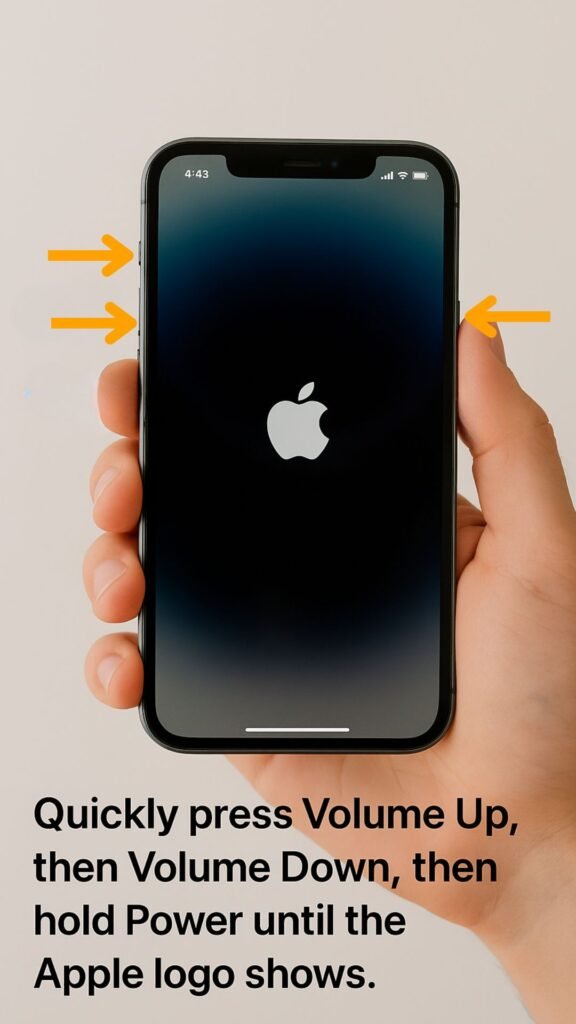
Ever found yourself staring at a frozen screen or a sluggish device, wondering if a quick fix exists, or if you're doomed to buy a new one? The world of tech troubleshooting often throws around terms like "soft reset" and "factory reset," leaving many of us scratching our heads. Understanding the difference between a Soft Reset vs. Factory Reset: What's the Difference? is crucial for knowing how to best revive your gadgets, protect your precious data, and avoid unnecessary panic.
Think of it this way: your device, whether it's a smartphone, tablet, or laptop, is a complex organism. Sometimes it just needs a nap; other times, it needs a full-blown cleanse. Knowing which "reset" to apply is like a doctor knowing whether to prescribe a painkiller or perform surgery. Get it wrong, and you might lose important files or simply waste your time.
At a Glance: The Core Differences
- Soft Reset: A simple restart. Think of it as hitting the "refresh" button for your device.
- What it does: Clears temporary glitches, refreshes memory, closes problematic apps.
- Data Impact: No data or settings are lost or changed.
- When to use: Minor slowdowns, app freezes, minor bugs, regular maintenance.
- Complexity: Very easy, often just holding the power button.
- Factory Reset (Hard Reset): A complete wipe. This is a return to "day one" software.
- What it does: Deletes all user data, installed apps, and custom settings, restoring the device to its original, out-of-the-box state.
- Data Impact: ALL data is permanently deleted. Backup is essential.
- When to use: Major performance issues, persistent malware/viruses, selling/donating a device, non-functional software.
- Complexity: More involved, typically found in settings or via key combinations.
Demystifying the Soft Reset: The Gentle Nudge Your Device Needs
Let's start with the simplest solution, the unsung hero of everyday tech woes: the soft reset. This isn't some arcane ritual; it's likely something you already do without even realizing it.
What Exactly Is a Soft Reset?
At its core, a soft reset is merely the process of restarting your device. Whether you power it off completely and then turn it back on, or simply choose the "Restart" option, you're performing a soft reset. It's the digital equivalent of taking a deep breath and clearing your head.
Your device constantly juggles dozens of apps, processes, and background tasks. Over time, some of these can become tangled, bugged, or simply consume too many resources, leading to slowdowns, app crashes, or unexpected behavior. A soft reset is designed to cut through this clutter.
When to Reach for the Soft Reset Button
This common method is your first line of defense against a host of minor annoyances. It's particularly effective when:
- Apps are misbehaving: An application freezes, crashes repeatedly, or isn't responding as it should. Maybe your favorite game keeps glitching or a streaming service refuses to load.
- Your device feels sluggish: Everything seems to be moving in slow motion, even though you haven't opened many apps. This often happens because background processes have piled up.
- Minor software glitches occur: Perhaps your Wi-Fi isn't connecting properly, your camera app won't open, or the screen rotation is stuck.
- As a regular tune-up: It's highly recommended to perform a soft reset from time to time – maybe once a week or every few days. Just like you'd declutter your desk, regularly restarting your device helps maintain optimal performance.
- After software updates: Sometimes, a fresh restart helps a new update settle in and ensures all changes are applied correctly.
How to Perform a Soft Reset
The beauty of a soft reset lies in its simplicity. While the exact steps can vary slightly by device, the general process is universal:
- For most smartphones/tablets: Press and hold the power button for a few seconds. A menu will usually pop up giving you options like "Power Off," "Restart," or "Emergency." Select "Restart." If that option isn't available, choose "Power Off," wait about 10-15 seconds, and then press the power button again to turn it back on.
- For computers (Windows/Mac): Simply go to your operating system's menu (Start Menu on Windows, Apple Menu on Mac) and choose the "Restart" option.
Important Note: A soft reset does not delete any of your files, applications, or settings. You don't need to back anything up beforehand. It's completely safe for your data.
The Benefits and Limitations of a Soft Reset
Advantages:
- Quick and Easy: It takes mere seconds or minutes to perform.
- Data Safe: No risk of losing photos, contacts, apps, or settings.
- Effective for Minor Issues: Often resolves app crashes, minor bugs, and performance slowdowns caused by software hiccups.
- Regular Maintenance: Keeps your device running smoothly by clearing temporary files and refreshing memory.
Limitations: - Doesn't Fix Major Problems: A soft reset won't remove persistent viruses, fix corrupted operating systems, or resolve hardware issues.
- Temporary Fixes: For recurring issues, a soft reset might only offer temporary relief, indicating a deeper problem.
In many cases, a simple restart is all it takes to bring your device back to life. It's the first troubleshooting step anyone should try, and often, it's the only one you'll need. To learn more about general device upkeep, check out our guide on essential device maintenance tips.
Understanding the Factory Reset: The Digital Do-Over
Now, let's talk about the big guns. When a soft reset just isn't cutting it, and you're facing more severe issues, a factory reset (also often called a "hard reset" or "master reset") comes into play. This is a far more drastic measure, a complete digital overhaul that brings your device back to square one.
What Exactly Is a Factory Reset?
A factory reset permanently deletes all files, applications, custom settings, and user accounts from your device. It effectively reverts the device to its original state, exactly as it was when you first unboxed it. Imagine wiping a whiteboard completely clean, erasing every scribble and drawing to start fresh. That's a factory reset.
This process targets the device's software at a fundamental level, rooting out deeply embedded problems that simple restarts can't touch.
When Is a Factory Reset Necessary?
A factory reset is not a casual troubleshooting step; it's a powerful tool reserved for serious problems. You might need to perform one if you encounter:
- Persistent Malware or Virus Infections: If your device is plagued by a stubborn virus, spyware, or other malicious software that traditional antivirus scans can't fully remove, a factory reset is often the most effective solution for purging it entirely.
- Major Software Corruption: When the operating system itself becomes corrupted, leading to constant crashes, boot loops, or non-functional core features.
- Severe Performance Degradation: If your device is excruciatingly slow, constantly freezing, or frequently shutting down automatically, even after trying soft resets and other troubleshooting. This could indicate a deeper software issue.
- Charging Problems or Overheating: While sometimes hardware-related, persistent issues like a device overheating without heavy use or experiencing charging problems can sometimes stem from runaway software processes, which a factory reset can address.
- Selling, Donating, or Gifting a Device: This is perhaps the most crucial use case. Before passing your device on, a factory reset ensures all your personal data (photos, messages, accounts, banking info) is completely erased, protecting your privacy.
- Forgotten Passcodes/PINs: In some cases, a factory reset is the only way to regain access to a device if you've forgotten the unlock code and exhausted all other options.
A factory reset is considered the final step in software-related resetting operations, used only after attempting other solutions, including soft resets.
The Critical Pre-Flight Checklist: Backing Up Your Data
This cannot be stressed enough: Before performing a factory reset, you MUST back up all important files. This includes photos, videos, music, documents, contacts, messages, and any other data you value. Why? Because once a factory reset is complete, there is no way to recover that data. It will be irreversibly deleted.
Here's a quick backup strategy:
- Cloud Services: Sync photos and videos to Google Photos, iCloud, Dropbox, or OneDrive. Back up contacts to Google Contacts or iCloud.
- External Storage: Transfer files to a USB drive, external hard drive, or another computer.
- Device-Specific Backup Tools: Many smartphones and computers offer built-in backup solutions (e.g., Google Drive backup for Android, iCloud backup for iOS, Time Machine for Mac).
- Application-Specific Backups: For certain apps (like WhatsApp chat history), you might need to enable in-app backups to cloud services.
Failing to back up is the single biggest pitfall of performing a factory reset. Don't let it happen to you!
How to Perform a Factory Reset (General Guidance)
The process for a factory reset is more involved and varies significantly depending on your device type and manufacturer. Always consult your device's manual or the manufacturer's website for precise instructions.
General steps often include:
- Navigate to Settings: On most smartphones, tablets, and even smart TVs (like when you reset Chromecast), you'll find the option under a "System," "General," "About Phone/Tablet," or "Backup & Reset" menu.
- Look for "Reset" or "Erase": The option is usually labeled something like "Factory Data Reset," "Erase all content and settings," or "Reset device."
- Confirm and Proceed: You'll typically be asked to confirm your decision multiple times and might need to enter your device's PIN or password. This is your last chance to back out!
- Wait for the Process to Complete: The device will then restart and begin the wiping process, which can take several minutes to an hour. Do NOT power off the device during this time.
- Set Up as New: Once complete, your device will boot up to the initial setup screen, just like when you first bought it.
For some older devices or specific scenarios:
- Removing the battery: For devices with removable batteries, physically taking the battery out and reinserting it can sometimes act as a form of hard reset, especially if the device is completely unresponsive. However, this primarily serves to force a power cycle and doesn't wipe data like a true factory reset. A software-based factory reset is still needed to wipe data.
- Recovery Mode / Combination Keys: Many devices (especially Android phones) have a "recovery mode" accessed by holding specific button combinations (e.g., Power + Volume Down) during startup. This mode often provides an option to "Wipe data/factory reset." This is a common method for when the device won't boot into the regular operating system.
The Power and Perils of a Factory Reset
Advantages:
- Highly Effective: Excellent for fixing major software issues, including persistent malware, deep system corruption, and severe performance problems.
- Privacy Protection: Essential for completely wiping personal data before selling or donating a device.
- Fresh Start: Gives your device a clean slate, often restoring it to near-new performance levels.
Limitations: - Data Loss: Irreversible deletion of all personal data if not backed up.
- Time-Consuming: The backup process, the reset itself, and then reinstalling apps and settings can take hours.
- Doesn't Fix Hardware Issues: If your device's problems stem from a faulty component (e.g., a broken screen, failing battery, damaged motherboard), a factory reset won't help. If a hard reset fails to resolve issues, further solutions like hardware replacement or professional servicing may be needed.
- Reinstallation Hassle: You'll need to reinstall all your apps, log back into accounts, and reconfigure settings.
A factory reset is a potent tool, but it's one you should wield with care and preparedness. If you're dealing with a persistently problematic device, it can be a lifesaver, but always prioritize your data backup first. You can explore more advanced troubleshooting in our guide on advanced smartphone troubleshooting.
Soft Reset vs. Factory Reset: A Head-to-Head Comparison
To truly solidify your understanding, let's break down the major differences between these two crucial troubleshooting methods in a direct comparison.
| Feature | Soft Reset | Factory Reset (Hard Reset) |
|---|---|---|
| Primary Action | Restarts device; turns off and on | Deletes all data, apps, and settings; restores to default |
| Functional Goal | Clear minor glitches, refresh memory, close apps | Eradicate deep software issues, prepare for new owner |
| Data Impact | NONE (data remains untouched) | ALL DATA PERMANENTLY DELETED |
| Backup Required? | No | ABSOLUTELY YES |
| Complexity | Very easy | More complex, typically in settings or via key combos |
| Frequency | Can (and should) be performed frequently | Should NOT be performed frequently; reserved for major issues |
| Effectiveness | Good for minor software hiccups | Highly effective for major software problems (viruses, corruption) |
| Typical Issues Addressed | App freezes, slowdowns, minor connectivity issues | Viruses, malware, constant crashes, non-functional OS, selling device |
| Time Investment | Seconds to a few minutes | Minutes to hours (including backup and re-setup) |
| Reversibility | Instantly back to normal | Irreversible data loss if not backed up |
Functional Differences: The "How"
A soft reset is fundamentally a power cycle. You're telling the device to shut down all its active processes and then start them up fresh. This can often be achieved by simply holding the power button until a restart option appears, or by physically toggling the power. It's the simplest "reboot" command your device understands.
A factory reset, however, goes much deeper. It involves accessing a specific system function, usually found within your device's settings menu or through a special "recovery mode" accessed via a combination of physical keys (like volume buttons and the power button). This function triggers a complete reinstallation of the operating system's original software, overwriting everything else. The act of removing the battery (if applicable) can act as a forced soft reset, but it doesn't perform the data wipe of a true factory reset.
Severity of Problems Addressed: The "Why"
Soft resets are your everyday troubleshooting buddy. They're perfect for those annoying but not catastrophic issues – an app that's stuck, a brief slowdown, or a temporary network glitch. Think of it as hitting the reset button on a circuit breaker for a minor power surge; it clears the immediate problem without impacting your house's wiring.
Factory resets are for the nuclear option. When you're dealing with major issues like a full-blown virus infection, an operating system that constantly crashes, overheating not due to physical damage, or a device that frequently shuts down on its own, a factory reset is often the only way to genuinely clean house. It's like replacing all the internal wiring because of a severe electrical fault. If even a factory reset doesn't resolve the issue, you're likely facing a hardware problem requiring professional repair or replacement. For more on optimizing your device's performance, see our article on boosting device speed.
Data Impact & Backups: The "What You Lose"
This is the most critical distinction. A soft reset is completely non-destructive to your data. Your photos, messages, apps, and personalized settings remain exactly as they were. You never need to worry about losing anything.
A factory reset, conversely, is built around data destruction (in a good way, for troubleshooting). It's designed to obliterate all user-generated content and settings. This is why the backup step is not just recommended, but absolutely mandatory. Without a proper backup, your data will be gone forever, with no possibility of recovery. For those rare and unfortunate moments, it’s useful to understand what data recovery options might be available.
Frequency & Complexity: The "When and How Often"
Soft resets are so benign and beneficial that they can – and should – be performed frequently. Many tech experts recommend restarting your phone or computer at least once a week to keep things running optimally. It’s a simple, low-effort task.
Factory resets, on the other hand, should be a rare event. They are complex procedures involving navigating deep into settings, confirming multiple warnings, and then enduring a potentially lengthy re-setup process. They are a last resort, not a regular maintenance item.
Effectiveness: The "Result"
While a soft reset is a great first step and often surprisingly effective for minor issues, its scope is limited. It addresses surface-level software problems.
A factory reset is far more effective for deep-seated issues because it literally rebuilds the software environment from scratch. It's considered the "final step" in software resetting operations precisely because of its thoroughness. However, neither type of reset can guarantee a solution for all potential device issues; hardware failures, for instance, are beyond their scope.
When to Choose Which Reset: Your Decision Guide
Making the right choice between a soft reset and a factory reset is all about accurately diagnosing the problem. Here’s a simple decision-making framework to guide you.
Scenario 1: Minor Annoyances and Everyday Glitches
Symptoms:
- An app suddenly freezes or crashes.
- Your phone feels a bit sluggish, slow to respond to touches.
- The Wi-Fi or Bluetooth isn't connecting as usual.
- Your device has been on for days or weeks without a restart.
- Minor display issues or temporary unresponsiveness.
Your Action: Perform a Soft Reset.
This is your go-to for routine maintenance and most common, non-critical issues. It’s quick, safe, and often surprisingly effective. Think of it as a brief timeout for your device.
Scenario 2: Persistent Problems and Major Headaches
Symptoms:
- Your device is constantly crashing or restarting on its own.
- You suspect a serious virus or malware infection that antivirus software can't fully remove.
- The operating system itself seems corrupted (e.g., won't boot past the logo, core functions don't work).
- Your device is severely overheating even with light use, or experiencing persistent charging issues (after ruling out faulty chargers/cables).
- You are preparing to sell, donate, or give away your device and need to ensure all your personal data is completely erased.
- You’ve forgotten your device’s password or PIN and have no other recovery options.
- A soft reset has been attempted multiple times, but the problem keeps recurring immediately.
Your Action: Prepare for and Perform a Factory Reset.
Before you even think about starting the factory reset process, stop and back up everything important. This is non-negotiable. Only proceed once you are certain all critical data is safely stored elsewhere. This is the last resort for software issues and the essential step for data privacy when transferring ownership.
Pitfalls to Avoid
- Forgetting to Back Up: This is the most common and devastating mistake when performing a factory reset. Always, always back up.
- Jumping Straight to Factory Reset: Don't skip the soft reset! It's simpler, faster, and preserves your data. A factory reset should always be the next logical step after a soft reset has failed.
- Interrupting the Process: Once a factory reset begins, do not power off the device, remove the battery, or disconnect it from power. This can corrupt the operating system and potentially "brick" your device, rendering it unusable.
- Expecting a Factory Reset to Fix Hardware: A factory reset wipes the software. It won't repair a cracked screen, a worn-out battery, or a broken charging port. If hardware is the culprit, the problem will persist.
Beyond the Reset: What If It Still Doesn't Work?
So you've tried the soft reset, you've gone through the extensive process of a factory reset (complete with careful backups), and your device is still misbehaving. What then?
At this point, it's highly probable that your issue is no longer software-related but points to a hardware failure. Common hardware culprits include:
- Failing battery: Leading to frequent shutdowns, overheating, or inability to hold a charge.
- Damaged components: Internal damage from drops, water exposure, or just wear and tear.
- Malfunctioning sensors: Causing issues with screen rotation, camera, or other features.
- Corrupted storage hardware: Making the device unable to write or read data reliably.
When software troubleshooting methods like soft and factory resets fail, your next steps usually involve:
- Professional Servicing: Take your device to an authorized service center or a reputable independent repair shop. Technicians have diagnostic tools to pinpoint hardware failures and can perform repairs or component replacements.
- Contacting Manufacturer Support: If your device is still under warranty, reach out to the manufacturer. They might offer repair, replacement, or further advanced troubleshooting steps.
- Hardware Replacement: In some severe cases, or for older devices where repair costs exceed the device's value, replacing the hardware entirely might be the most practical and cost-effective solution.
Remember, technology has its limits. While resets can solve a myriad of software problems, they are not magic wands for physical damage or component failure.
Common Questions & Misconceptions
Let's clear up some frequently asked questions and common misunderstandings about resets.
Q: Does a soft reset delete any of my files or settings?
A: No, absolutely not. A soft reset is simply a restart; it does not alter or delete any data, applications, or customized settings. Your device will be exactly as you left it, just refreshed.
Q: Is a hard reset the same as a master reset?
A: Yes, these terms are often used interchangeably. "Hard reset" usually implies the action of restoring a device to its original factory settings, effectively wiping all user data. "Master reset" means the same thing. The distinction might vary slightly by manufacturer, but for all practical purposes, they refer to the process of reverting the device to its "as new" state.
Q: How often should I soft reset my device?
A: There's no strict rule, but a good practice is to perform a soft reset periodically. For heavily used devices like smartphones, once a week or every few days is beneficial for clearing out temporary memory and ensuring smooth operation. For computers, restarting daily or every few days is also a healthy habit.
Q: Can a factory reset fix hardware issues?
A: No, a factory reset is a software-level solution. It will not fix any physical damage, component failures (like a bad battery or broken screen), or internal hardware malfunctions. If a hardware component is faulty, a factory reset might temporarily resolve a software symptom related to it, but the underlying hardware problem will persist and eventually resurface.
Q: Will a factory reset remove carrier-specific bloatware or locked features?
A: Generally, no. A factory reset restores the device to its original factory state, which includes any pre-installed software (often called bloatware) from the manufacturer or your carrier. It also won't unlock SIM restrictions or alter any hardware-level locks.
Q: How long does a factory reset take?
A: The actual wiping process typically takes anywhere from a few minutes to an hour, depending on the device, its storage size, and how much data needs to be overwritten. However, the entire process, including backing up your data, performing the reset, and then setting up your device again and reinstalling apps, can easily take several hours.
Your Digital Clean Slate: Empowering Your Devices
Navigating the occasional hiccups of our digital companions is an unavoidable part of modern life. Knowing the difference between a soft reset and a factory reset isn't just tech jargon; it's essential knowledge that empowers you to troubleshoot effectively, protect your precious data, and make informed decisions about your devices.
Remember:
- Soft Reset is your gentle, everyday tune-up—safe, quick, and perfect for minor annoyances.
- Factory Reset is your powerful last resort for software issues, a complete digital overhaul that requires careful data backup but offers a true fresh start.
By understanding these two fundamental tools, you're better equipped to maintain the health of your gadgets, extend their lifespan, and avoid unnecessary frustration (or expensive trips to the repair shop). So, next time your device acts up, you'll know exactly which "reset" button to reach for, transforming you from a bewildered user into a confident tech problem-solver.