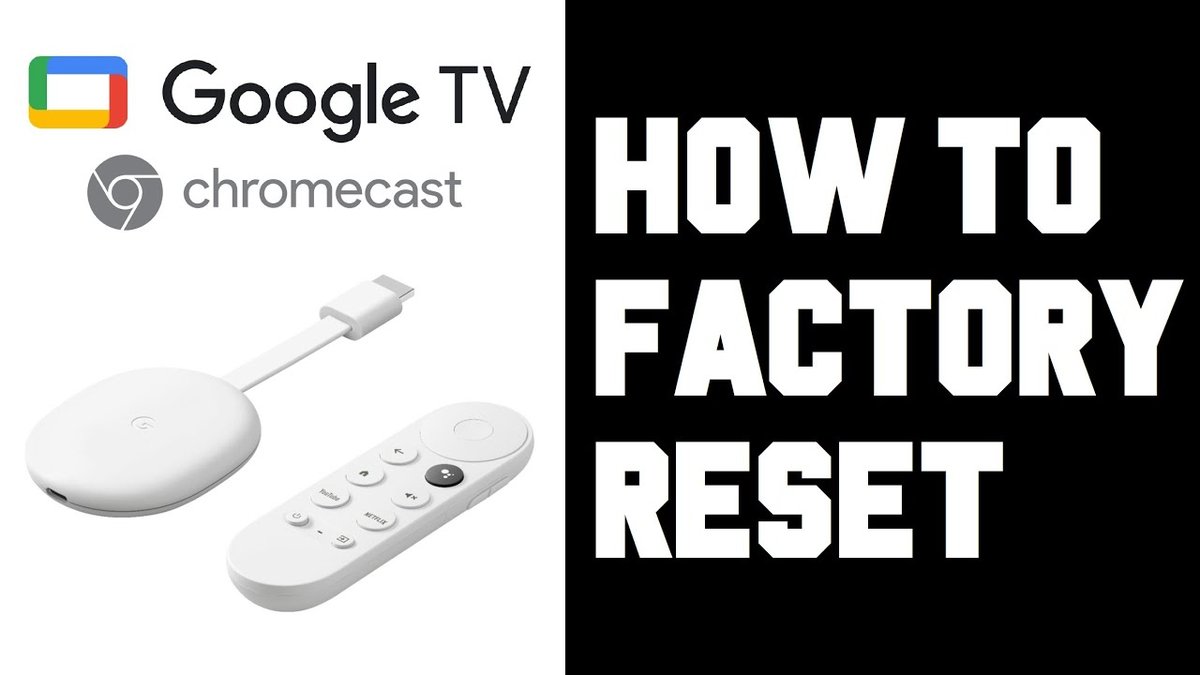
Thinking of upgrading your streaming setup, passing your trusty Chromecast to a friend, or perhaps selling it to fund your next tech adventure? Before you let it go, a crucial step is resetting Chromecast for sale or transfer. This isn't just about clearing its digital dust; it's about protecting your personal data and ensuring the next owner gets a fresh, hassle-free start. Just like wiping your smartphone before selling it, giving your Chromecast a factory reset ensures no lingering login details, Wi-Fi passwords, or usage history remain.
This guide will walk you through everything you need to know, from understanding why a reset is essential to mastering the specific method for your Chromecast model. We’ll cover the quick fixes (soft reboots) versus the complete data wipe (factory resets) and ensure you feel confident and secure in preparing your device for its next chapter.
At a Glance: Key Takeaways for Your Chromecast Reset
- Why Reset? Protect your personal data (Wi-Fi, Google account), resolve persistent software glitches, and ensure a clean slate for the next user.
- Factory Reset vs. Soft Reboot: A factory reset wipes all data and settings, returning the device to its "out-of-the-box" state. A soft reboot (power cycle) fixes minor issues without data loss.
- Methods Vary by Model:
- All Chromecasts: Use the physical reset button. This is the most reliable method.
- 1st, 2nd, 3rd Gen & Ultra: Use the Google Home app.
- Chromecast with Google TV: Use the device's on-screen Settings menu and remote.
- What's Erased? All personal settings, linked accounts, Wi-Fi credentials, and stored app data. The Chromecast will require full re-setup.
- What's Not Erased? Your Google account itself isn't deleted, only disconnected from the device. Your streaming subscriptions remain active on your Google account.
- Always Power On: Ensure your Chromecast is plugged in and powered during the reset process to prevent bricking the device.
Why a Clean Slate Matters: Beyond Just Fixing Glitches
You might be familiar with factory resets as a go-to troubleshooting step for stubborn tech issues. And yes, a factory reset is excellent for fixing a slow, glitching Chromecast, clearing out potential malicious software, or resolving persistent internet connection problems. It gives the device a fresh, clean slate, often making it feel snappy again. But when you’re preparing your Chromecast for a new home, the "why" goes much deeper than performance.
Imagine handing over a digital diary with your passwords sticky-noted inside. That's essentially what you risk if you don't factory reset a Chromecast you’re selling or gifting. These devices store sensitive information: your home Wi-Fi network and password (a big one!), your Google account details (even if just a token), and potentially data from apps you’ve used. This information, if left on the device, could be accessed by the next owner, potentially compromising your network security and privacy.
A proper factory reset protects your personal information, making the device safe to transfer. It completely wipes all user data from the device, ensuring your digital footprint is erased and providing peace of mind. It also ensures the next owner can set it up as if it were brand new, without inheriting your preferences or running into conflicts with your old settings. It’s an act of digital hygiene that benefits everyone involved.
Before You Begin: A Quick Pre-Reset Checklist
Before you initiate the nuclear option of a factory reset, take a moment to ensure a smooth process. While a Chromecast doesn't have "data to back up" in the traditional sense like a phone, these steps will help you confirm everything is in order:
- Confirm Your Chromecast Model: Knowing whether you have an original Chromecast, an Ultra, or a newer Chromecast with Google TV will dictate the most straightforward reset method. A quick visual check can usually tell you, or you can check its packaging or purchase history.
- Verify Power Supply: Ensure your Chromecast is fully plugged into your TV's HDMI port and, crucially, connected to its power adapter (or a sufficiently powerful USB port on your TV). An interrupted power supply during a reset can cause serious issues.
- Access to Your Device: Make sure you can physically access the Chromecast dongle itself for the button method, or have your phone with the Google Home app installed and your Wi-Fi network handy for the app method. For Google TV, have your remote ready.
- Understand Data Loss: Reconfirm that you understand all personal data, settings, and linked accounts will be erased. You're giving the device a complete memory wipe. This is not a process to undo.
- Remove from Google Home App (Optional, but Recommended): While a factory reset severs the device's connection to your Google account, you can manually remove it from your Google Home app beforehand for an extra layer of digital housekeeping. Simply open the Google Home app, tap your Chromecast's tile, then Settings (gear icon), then scroll down and select "Remove device." This ensures your Google account no longer "sees" the device on your network.
The Ultimate Data Wipe: How to Factory Reset Your Chromecast
There are primarily three ways to factory reset a Chromecast, depending on its model. Choose the method that best suits your specific device and situation.
Method 1: The Trusty Physical Reset Button (Works for All Chromecasts)
This is the most universal and often most reliable method, especially if your Chromecast is unresponsive or you've lost access to your Google Home app. It's a direct hardware intervention.
What You'll Need:
- Your Chromecast plugged into your TV and powered on.
- The Chromecast dongle itself within reach.
Step-by-Step:
- Plug In and Power On: Ensure your Chromecast is connected to your TV's HDMI port and is receiving power (either from its wall adapter or a powered USB port). Wait for it to boot up and display something on your TV screen, even if it's just the Google logo.
- Locate the Button: On the Chromecast dongle, look for a small, circular physical button. Its exact location might vary slightly by generation, but it’s usually near the Micro-USB power port. For the original Chromecast, it's on the side. For newer models (2nd Gen, 3rd Gen, Ultra), it's often more prominent.
- Press and Hold: Gently but firmly press and hold this reset button. Don't just tap it.
- Observe the Light: As you hold the button, the LED light on the Chromecast will start to blink. It might change colors (yellow, orange, or red, depending on the model and firmware) and blink faster. Your TV screen may also display a message like "Resetting to factory defaults" or "Erasing data."
- Keep Holding (Critical): Continue holding the button for approximately 25 seconds. This duration is crucial. Do not release the button until you see a clear sign that the reset has initiated. The light usually goes solid white (or another color) before restarting, or the TV screen will clearly show it's resetting.
- Release and Let It Finish: Once the device's LED changes (e.g., solid white) or your TV displays a reset confirmation, you can release the button. The Chromecast will then restart.
- Initial Setup Screen: After the restart, your Chromecast will boot up to the initial setup screen, just as it did when it was brand new. This confirms the factory reset was successful.
Troubleshooting Tip: If nothing happens when you press the button, ensure the Chromecast is powered and try pressing more firmly. If it's completely unresponsive, try unplugging it for a minute, plugging it back in, and then immediately attempting the button reset.
Method 2: Wiping via the Google Home App (For 1st, 2nd, 3rd Gen, and Ultra Models)
If your Chromecast is functioning normally and connected to your Google Home app, this method offers a convenient way to reset it without physically touching the device.
What You'll Need:
- Your smartphone or tablet with the Google Home app installed.
- The Google Home app logged in with the Google account linked to your Chromecast.
- Your Chromecast powered on and connected to the same Wi-Fi network as your phone/tablet.
Step-by-Step:
- Open Google Home App: Launch the Google Home app on your mobile device.
- Find Your Chromecast: On the main screen, you should see a tile for your Chromecast device. If you have multiple devices, scroll until you find the correct one.
- Tap and Hold: Tap and hold your Chromecast’s tile until a menu or options appear.
- Access Settings: From the options, tap the "Settings" icon (usually a gear).
- More Settings/Remove Device: In the Settings menu, look for an option like "More settings" or scroll down until you see "Remove device" or "Factory reset." The exact phrasing can vary slightly with app updates.
- Historically, there was often a "More" or three-dot menu, then "Factory reset." In recent versions, it's often directly accessible when you scroll down within the device settings.
- Initiate Factory Reset: Select "Factory reset." The app will likely ask for confirmation.
- Confirm Twice: Tap "Factory reset" again to confirm your decision.
- Wait for Completion: Your Chromecast will begin the reset process. You might see a message on your TV screen indicating this.
- Initial Setup Screen: Once complete, your Chromecast will restart and display the setup screen, indicating a successful wipe.
Important Note for iOS Users: Some users, particularly on iOS devices, have reported occasional instability or difficulty initiating a factory reset through the Google Home app. If you encounter issues, don't fret – simply switch to the physical reset button method (Method 1), which is always a reliable fallback.
Method 3: For the Google TV Generation (Chromecast with Google TV)
The newer Chromecast with Google TV models operate more like a full smart TV interface, complete with a remote. This means you can reset it directly through its on-screen settings.
What You'll Need:
- Your Chromecast with Google TV powered on and connected to your TV.
- Your Google TV Voice Remote.
Step-by-Step:
- Navigate to Settings: Using your Voice Remote, navigate to your profile icon (usually in the top right corner of the home screen). Select it to open a quick menu.
- Open Settings: From this menu, select the "Settings" icon (a gear icon).
- System Options: In the Settings menu, scroll down and select "System."
- About Device: Within the System menu, select "About" (it might have a circled "i" icon).
- Factory Reset: Scroll down in the "About" section and select "Factory reset."
- Erase Everything: You will be prompted to confirm. Select "Factory reset" again, then "Erase everything." This will initiate the permanent reset.
- Let it Process: The device will then erase all data and restart. This process can take a few minutes.
- Remote Resync (if needed): After the reset, your remote might need to be re-synced. Hold the "Back" and "Home" buttons on your remote simultaneously for a few seconds until you see an on-screen prompt confirming the resync.
- Welcome Screen: Your Chromecast with Google TV will boot up to its initial welcome and setup screen, ready for a new owner.
Choosing Your Reset Path: A Quick Decision Guide
Not sure which method to use? Here’s a simple guide to help you decide:
- When in doubt, use the physical reset button. It's the most reliable and works across all Chromecast generations, especially if the device is unresponsive or you no longer have access to the associated Google Home account.
- For 1st, 2nd, 3rd Gen, and Ultra Chromecasts that are still connected to your Wi-Fi and Google Home app, using the app is convenient.
- For Chromecast with Google TV models, using the on-screen settings with the remote is the most intuitive method. Only resort to the physical button if you have lost the remote or the device is unresponsive.
No matter which method you choose, the outcome is the same: a completely wiped Chromecast, ready for its new home.
What Happens Post-Reset? A Clean Slate Awaits
Once the factory reset is complete, your Chromecast will be in the exact state it was when you first unboxed it. Here's what that means:
- All Personal Data Wiped: Your Google account links, saved Wi-Fi networks and passwords, connected streaming service accounts, device name, and any personalized settings are completely erased.
- Default Settings Restored: The device will revert to its original factory settings, including language preferences and display settings.
- No Firmware Downgrade: The factory reset does not roll back the Chromecast's firmware to an older version. It will retain the latest software updates it received before the reset.
- Ready for New Setup: The Chromecast will display a welcome screen, prompting the next user to download the Google Home app (or use the Google TV setup process) to begin the initial setup, connect to their Wi-Fi, and link their Google account.
Essentially, you've handed over a device that is indistinguishable from a brand new one, ensuring maximum privacy for you and maximum ease of use for the next owner. This process of preparing your Chromecast is as important as any physical cleaning you might do. For more general guidance on wiping your devices, you might find it helpful to explore resources on how to reset your Chromecast beyond just the factory default settings.
Factory Reset vs. Soft Reboot: Know the Difference
While a factory reset is the complete data wipe needed for sale or transfer, sometimes your Chromecast just needs a gentle nudge to resolve minor issues. That's where a "soft reboot" comes in. Understanding the distinction is crucial.
What is a Soft Reboot?
A soft reboot, also known as a restart or power cycle, simply turns your Chromecast off and then back on. It refreshes the device's operating system and clears temporary memory, but it does not erase any data or settings. Think of it like restarting your computer when it's acting sluggish – your files are still there, but the system gets a fresh start.
When to Use a Soft Reboot:
- Minor Glitches: If your Chromecast is frozen, unresponsive, or experiencing occasional audio/video dropouts.
- Slow Performance: If the interface feels sluggish but doesn't have major bugs.
- Connectivity Hiccups: If it momentarily loses connection to your Wi-Fi or casting device.
- No Data Loss Needed: When you want to troubleshoot a problem without losing your personal settings or having to re-setup the entire device.
How to Soft Reboot Your Chromecast:
- From the Google Home App:
- Open the Google Home app.
- Tap your Chromecast’s tile.
- Tap "Settings" (gear icon).
- Look for a "More settings" (three dots) or simply scroll down to find "Reboot."
- Tap "Reboot" and confirm. The device will restart itself.
- Unplug and Plug Back In (The Classic Method):
- Simply unplug the USB power cable from your Chromecast.
- Wait about 10-15 seconds. This allows residual power to drain, ensuring a full power cycle.
- Plug the USB power cable back in.
- The Chromecast will boot up as usual, with all your settings intact.
Why a Soft Reboot is NOT Enough for Sale or Transfer:
While convenient for minor issues, a soft reboot does not clear your personal data. If you're selling or transferring your Chromecast, a soft reboot leaves your Wi-Fi credentials, Google account link, and other settings exposed to the next owner. This is why a full factory reset is non-negotiable for privacy and security when changing ownership.
Troubleshooting Common Reset Hurdles
Even with clear instructions, technology can sometimes be finicky. Here are a few common issues you might encounter when trying to reset your Chromecast and how to overcome them:
- Chromecast Not Responding to Button Press:
- Check Power: Ensure the Chromecast is fully powered on and connected to its power adapter (not just a low-power USB port on the TV). A low power state can prevent it from responding correctly.
- Firm Press: Make sure you're pressing the button firmly enough. Some buttons can be a bit stiff.
- Patience: Hold for the full 25 seconds. Releasing too early is a common mistake.
- Unplug and Retry: If it's completely unresponsive, unplug the Chromecast's power for 30 seconds, then plug it back in and immediately attempt the button reset as it boots up.
- Google Home App Reset Fails or Freezes:
- App Glitch: The Google Home app can sometimes be buggy. Try closing and reopening the app, or even uninstalling and reinstalling it.
- Network Issue: Ensure both your phone and Chromecast are on the same Wi-Fi network and that your network is stable.
- Go Physical: If the app is giving you trouble, simply switch to the physical reset button method. It's the most robust option and will work even if the app fails.
- TV Screen Shows Nothing During Reset:
- HDMI Input: Double-check that your TV is on the correct HDMI input for your Chromecast.
- Power: Again, verify the Chromecast is receiving power. No power, no display.
- Still Resetting: The device might be resetting, but your TV isn't displaying the message clearly or quickly enough. Continue holding the button for the full duration, or wait a few minutes if using the app/Google TV method. The absence of a picture doesn't necessarily mean it's not working behind the scenes.
- Test After: Once the presumed reset time has passed, try setting it up. If it goes to the initial setup screen, the reset was successful, even if you didn't see explicit confirmation.
- Remote Not Responding After Google TV Reset:
- Re-Pair: This is normal. Hold down the "Back" and "Home" buttons simultaneously on the Google TV remote for a few seconds. The remote should then re-pair with the device.
By systematically addressing these potential hang-ups, you can ensure a successful factory reset and confidently prepare your Chromecast for its new journey.
Frequently Asked Questions About Resetting Your Chromecast
Here are answers to some common questions that arise when preparing your Chromecast for a new owner.
Q: Does a factory reset delete my Google account?
A: No, a factory reset only disconnects the Chromecast device from your Google account and removes its settings from that specific device. Your Google account itself, and all its associated data, remains untouched and secure.
Q: Can I recover data after a factory reset?
A: No. A factory reset is a permanent and irreversible action for the data on the Chromecast. Once wiped, the data cannot be recovered. This is why it's so effective for privacy.
Q: Do I need to unregister my Chromecast from my Google account separately?
A: A factory reset automatically unregisters the device from your Google account. However, as an extra step for peace of mind, you can also go into your Google Home app, select the Chromecast, go to settings, and choose "Remove device" before or after the reset. This ensures the device no longer appears in your list of active Google Home devices.
Q: What if I forget to reset my Chromecast before giving it away?
A: If you realize you forgot to reset it, and the new owner has already connected it, your personal information (like Wi-Fi password) could be accessible. Immediately try to factory reset it remotely through your Google Home app if it's still connected to your account and network. If not, contact the new owner and guide them through a factory reset. You should also change your Wi-Fi password as a precaution.
Q: Will resetting my Chromecast affect my streaming subscriptions (Netflix, Hulu, etc.)?
A: No, your streaming subscriptions are tied to your streaming service accounts, not the Chromecast device itself. Resetting the Chromecast only removes the device's login to those services, not your actual subscription. You'll simply need to log in again on a new device.
Q: Is there any difference between resetting a Chromecast and a Chromecast Ultra?
A: Functionally, the factory reset process is the same for the standard Chromecast models (1st, 2nd, 3rd Gen) and the Chromecast Ultra. Both can be reset via the physical button or the Google Home app. The Ultra primarily offers 4K streaming and an Ethernet port option.
Q: How long does a factory reset take?
A: The actual erasing and rebooting process usually takes a few minutes, typically between 2 to 5 minutes, depending on the model. The bulk of the time is often waiting for the device to fully boot up to the initial setup screen.
Final Thoughts: Passing On Peace of Mind
Preparing your Chromecast for sale or transfer isn't just a technicality; it's a vital step in maintaining your digital security and ensuring a positive experience for the next user. By understanding the methods, knowing when to use a soft reboot versus a full factory reset, and troubleshooting any snags, you empower yourself to manage your technology responsibly.
Whether it’s a vintage 1st-gen model or a sleek Chromecast with Google TV, a fresh start is always the best start. So go ahead, follow these steps with confidence. You're not just letting go of a device; you're passing on a securely wiped canvas, ready for someone else to paint their streaming dreams upon, completely free from your digital footprint. Your privacy, and their satisfaction, are well worth the few minutes it takes.