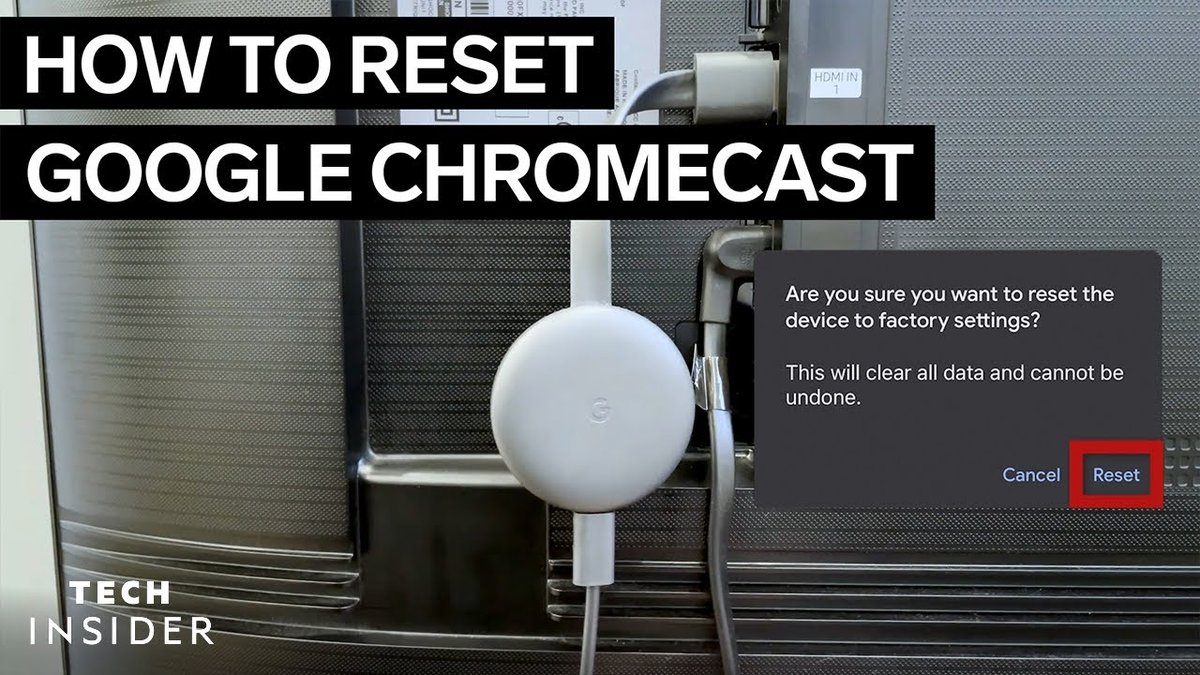
Is your Chromecast acting up, refusing to connect, or simply moving at a snail's pace? Perhaps you're preparing to sell it or give it a new home. Whatever the reason, performing a reset on your Chromecast is often the most effective solution. This guide will walk you through everything you need to know, from a quick refresh to a complete factory reset, ensuring your device is ready for its next chapter, whether that's streaming flawlessly in your living room or moving on to a new owner.
Think of a reset as hitting the refresh button on your device's brain, clearing out old cobwebs and giving it a clean slate. It's a powerful tool in your troubleshooting arsenal, capable of resolving a wide array of software glitches, connectivity issues, and performance slowdowns that can plague even the best streaming gadgets. By understanding the different types of resets and when to use them, you can restore your Chromecast to peak performance with confidence.
Why a Reset Can Be Your Chromecast's Best Friend (and Yours!)
A factory reset is more than just a quick fix; it's a comprehensive solution for numerous Chromecast dilemmas. This process erases all personal data, settings, and configurations, returning your device to the state it was in right out of the box. This can be invaluable for restoring sluggish devices or preparing them for a new owner.
You might be surprised at how many common problems a simple reset can resolve. For a deeper dive into specific scenarios, we've outlined exactly When to reset your Chromecast to get the most benefit. Whether you're dealing with persistent Wi-Fi dropouts, buffering issues, or a device that simply feels slow, a reset can often be the magic bullet you're looking for.
Top Reasons to Consider a Factory Reset:
- Fixing Performance Issues: If your Chromecast is constantly glitching, freezing, or taking forever to load, a factory reset clears out internal storage and resolves software errors. This can eliminate potential bugs that might be slowing down your streaming experience.
- Protecting Your Privacy: Planning to sell, gift, or dispose of your Chromecast? A factory reset is crucial for wiping all your personal information, saved networks, and linked accounts. This ensures your data doesn't fall into the wrong hands.
- Resolving Stubborn Connectivity Problems: Persistent Wi-Fi issues, changes in your internet provider, or difficulties linking to your Google account can often be fixed by resetting the device. It gives your Chromecast a fresh start to establish new network connections.
- Starting Fresh: Sometimes you just want a clean slate. A reset allows you to reconfigure settings, link to a different Google account, or simply enjoy a hassle-free setup process.
Reboot vs. Factory Reset: Knowing When to Go All In
It's important to distinguish between a simple reboot and a full factory reset. While both can help resolve issues, they have very different outcomes. A reboot is like turning your computer off and on again, while a factory reset is like reinstalling its entire operating system.
Understanding these differences is key to effective troubleshooting. If you're wondering which approach is right for your situation, our guide on Soft vs. Factory Reset Explained offers a comprehensive breakdown. Knowing when to choose one over the other can save you time and frustration.
Give Your Chromecast a Quick Reboot for Minor Glitches
A soft reboot is a less drastic measure that can fix minor glitches or temporary software hiccups without erasing any data. It's always a good first step before attempting a factory reset.
- Using the Google Home App: Open the Google Home app, tap and hold your Chromecast's tile, then go to Settings (gear icon). Select More (three dots), and then tap Reboot.
- Unplug and Plug Back In: The simplest method is to unplug the USB power cable from your Chromecast, wait about 10 seconds, and then plug it back in. This will power cycle the device and often resolves small issues. Remember, unplugging the HDMI cable won't reboot the device, only the power source will.
Master the Factory Reset: Step-by-Step for Every Chromecast Model
When a soft reboot isn't enough, or if you're preparing your device for sale, a factory reset is the way to go. There are a few different methods depending on which Chromecast model you own. We've compiled a comprehensive guide on How to factory reset Chromecast that covers every iteration of the device.
Let's dive into the specific steps for each model, ensuring you can confidently reset your device regardless of its generation.
Method 1: The Trusty Reset Button (Works for All Models)
This method is universal and can be used for any Chromecast model, making it a reliable choice if you can't access the app or settings.
- Ensure Power: Plug your Chromecast into your TV and ensure it's powered on.
- Locate the Button: Find the small reset button on the Chromecast dongle, typically next to the Micro USB port.
- Press and Hold:
- For Chromecast (1st Generation): Press and hold the button for about 25 seconds until the indicator light starts to flash.
- For Chromecast (2nd Generation and later), Chromecast Ultra, and Chromecast with Google TV: While plugged into power, press and hold the button. The LED light will blink orange, then turn solid white. Release the button only when it turns solid white.
- Confirm Reset: Your TV screen may display "Resetting to factory defaults." Once the process is complete, your Chromecast will be ready for a new setup.
Method 2: Resetting via the Google Home App (1st, 2nd, 3rd Gen & Ultra)
If you still have access to the Google Home app and your Chromecast is connected, this can be a convenient way to reset older models.
- Open Google Home App: Download and open the Google Home app on your mobile device.
- Find Your Device: Tap the "Devices" button in the bottom navigation bar, then tap and hold your Chromecast's tile.
- Access Settings: Tap the "Settings" icon (gear) in the top right.
- Initiate Reset: Tap "More" (⋮) in the top right, then tap "Factory reset" twice to confirm.
- Re-setup: After the reset, you will need to set up your Chromecast again from scratch.
Method 3: Resetting Chromecast with Google TV Through Settings
For the newer Chromecast with Google TV models, the reset process is integrated directly into the device's system settings, accessed via your remote. If you own this specific model, you'll find even more detailed instructions in our dedicated guide on Reset your Chromecast How to reset.
- Power On and Navigate: Turn on your Google TV and use your Voice Remote.
- Access Settings: Select your profile icon in the top right of your TV screen, then select the "Settings" icon (gear).
- System Options: Select "System."
- About Device: Select the "About" option (often indicated by a circled "i").
- Factory Reset: Select "Factory reset."
- Confirm Erase: Select "Erase everything."
- Remote Resync (Optional): You may need to hold "Back" and "Home" on your remote to resync it to the TV after the reset.
- New Setup: Your device will now be factory reset and require a complete re-setup.
The Road Ahead: What Happens After Your Chromecast Reset?
Once your Chromecast has been successfully reset, it's essentially a brand-new device in terms of software. This means it will no longer remember your Wi-Fi network, your Google account, or any personalized settings. You'll need to go through the initial setup process again, just like when you first took it out of the box.
Don't worry, this isn't as daunting as it sounds! To guide you through every step of this post-reset journey, including reconnecting to Wi-Fi and linking your Google account, be sure to check out our comprehensive article on What Happens After a Chromecast.
Here's a quick overview of what to expect:
- Requires Re-setup: Your Chromecast will revert to factory settings and need to be set up from the beginning.
- Wi-Fi Connection: You'll need to reconnect it to your Wi-Fi network. Make sure you have your Wi-Fi password handy!
- Google Account Linkage: You'll need to link it to your Google account again through the Google Home app.
- No Data Loss on Google Account: Resetting the Chromecast does not delete your Google account or any data stored within it; it only removes the Chromecast's association with that account.
Troubleshooting Common Hurdles and Smart Tips
While resetting a Chromecast is generally straightforward, a few common issues can arise. Knowing how to navigate these can save you a lot of headache.
- Common Mistakes to Avoid:
- Unplugging During Reset: Never unplug your Chromecast while it's in the middle of a reset process. This can corrupt the device and potentially brick it.
- Not Holding Button Long Enough: Ensure you hold the physical reset button for the full duration specified for your model.
- Forgetting Wi-Fi Password: You'll need this for re-setup, so have it ready.
- Unresponsive Chromecast: If your Chromecast isn't responding at all, try unplugging it from power for a full minute, then plug it back in. If it remains unresponsive, proceed with the physical factory reset method as a last resort.
- Setup Failure After Reset: If you encounter issues during the re-setup process:
- Update your Google Home app to the latest version.
- Ensure your mobile device's Bluetooth is enabled.
- Move closer to the Chromecast and your Wi-Fi router.
- Confirm your network isn't blocking device-to-device connections.
- Try setting up with a different mobile device if available.
- Persistent Issues: If a factory reset doesn't resolve your problems, it might indicate a hardware fault. In such cases, contact Google support or explore warranty options.
Taking the time to reset your Chromecast effectively can breathe new life into your streaming experience or ensure a smooth transition to a new owner. With these detailed steps and troubleshooting tips, you're now equipped to handle any Chromecast reset challenge with confidence.