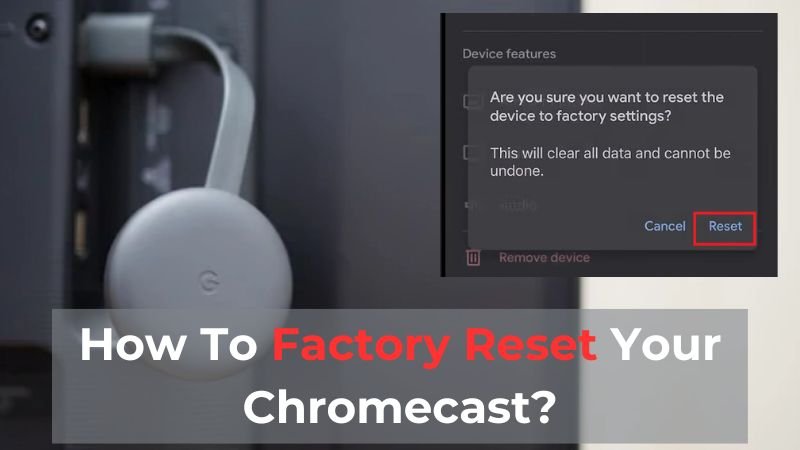
Your Chromecast has been a loyal streaming companion, but even the best tech sometimes needs a fresh start. Whether you're battling persistent buffering, mysterious glitches, or simply preparing to pass it on to a new owner, knowing How to Factory Reset Chromecast (All Models) is an invaluable skill. It’s like hitting the ultimate refresh button, wiping the slate clean and bringing your device back to its original, out-of-the-box state.
This isn't just about fixing problems; it's about empowering you to take control of your streaming experience. And while it might sound daunting, the process is surprisingly straightforward across all Chromecast generations.
At a Glance: Your Quick Reset Checklist
Before you dive in, here’s a quick overview of what to expect and prepare for:
- Why Reset? Resolves connectivity issues, performance lags, software bugs, or readies the device for resale/transfer.
- What Happens? Erases all personal settings, Wi-Fi networks, linked accounts, and preferences. You'll need to set it up again from scratch.
- What You Need: Your Wi-Fi network name and password for reconnecting. If using the Google Home app, ensure your phone is on the same network.
- Key Methods: Physical button (most common), Google Home app (if responsive), or a niche Chrome browser method.
- Post-Reset: Expect to re-setup like a new device, including signing into your Google account and updating firmware.
Why Hit the Reset Button? The "When" and "Why It Matters"
Think of a factory reset as a deep cleanse for your Chromecast. It's often the most effective solution when your device starts acting up in ways that simple restarts can't fix. You might consider this powerful move if you're experiencing:
- Stubborn Connectivity Issues: Your Chromecast constantly drops Wi-Fi, refuses to connect, or isn't discoverable by your devices.
- Performance Woes: Content is lagging, freezing, or the interface feels sluggish and unresponsive.
- Software Glitches: Apps crash repeatedly, features don't work as expected, or your Chromecast generally feels "buggy."
- Unresponsiveness: The device isn't responding to commands from the Google Home app or your casting device.
- Preparing for a New Home: You're selling your Chromecast, giving it away, or moving it to a new location with a different network and want to ensure your personal data is erased.
- Forgotten Credentials: You've forgotten the Wi-Fi or Google account details linked to the device and need a clean slate to re-access it.
A factory reset essentially wipes the device clean, restoring it to the same condition it was in when you first unboxed it. This means all custom settings, network configurations, and linked accounts are permanently deleted. It’s a powerful step that resolves many underlying software conflicts by giving your Chromecast a fresh start.
Preparing for the Reset: What You Need to Know First
Before you commit to a factory reset, it’s crucial to understand the implications and gather a few essentials. This isn't a reversible action; once you initiate the reset, there's no going back to your previous settings.
What Gets Erased (and What Stays)
When you factory reset your Chromecast, you are permanently deleting:
- All Personalized Settings: Any custom device names, display settings, or preferences you've configured.
- Wi-Fi Network Information: All saved Wi-Fi networks and their passwords will be gone.
- Linked Google Accounts: Any Google accounts connected to the device will be unlinked.
- App Data & Preferences: If you're using a Chromecast with Google TV, any installed apps and their specific data will be removed.
What doesn't change: Your home Wi-Fi network itself (the router, modem, and their passwords) remains untouched. You'll just need to re-enter your Wi-Fi credentials into the Chromecast during the re-setup process.
Your Pre-Reset Checklist
To make the post-reset setup as smooth as possible, ensure you have these handy:
- Your Wi-Fi Network Name (SSID) and Password: Absolutely essential for getting your Chromecast back online.
- Your Google Account Credentials: You'll need to sign back in to link your device.
- Your Smartphone or Tablet: For setting up the device again, as well as if you choose to reset using the Google Home app.
- The Google Home App: Make sure it's installed and updated on your mobile device.
It's a good idea to quickly jot down your Wi-Fi password if you don't have it memorized. This small step can save you a lot of frustration later.
Method 1: The Go-To — Using the Physical Reset Button
This is often the most reliable and straightforward method, especially if your Chromecast is unresponsive or can't be found by the Google Home app. It's a universal solution that works for all Chromecast models.
When to Use This Method
- Your Chromecast is completely frozen or unresponsive.
- The Google Home app can't find or connect to your Chromecast.
- You're selling or giving away the device and want a guaranteed clean wipe.
Step-by-Step: The Physical Button Reset
The physical reset button method is simple, but the key is knowing where to find that tiny button on your specific Chromecast model.
Step 1: Locate the Reset Button
The reset button is usually a small, recessed button that might require a paperclip or pen tip for older models, or can be pressed with a finger on newer ones. Its exact location varies by generation:
- Chromecast (1st Generation): Look on the side of the dongle, near the power port.
- Chromecast (2nd & 3rd Generation): You'll typically find it on the side, close to the micro HDMI port.
- Chromecast Ultra: The button is located on the side, near the power port.
- Chromecast with Google TV (HD & 4K): The button is on the back of the device, above the power port. This one is usually tactile and easy to press with your finger.
Step 2: Power On Your Chromecast
Ensure your Chromecast is properly connected to your TV's HDMI port and receiving power through its USB cable and adapter. You should see a display on your TV, even if it's just the boot-up logo.
Step 3: Press and Hold the Reset Button
With the Chromecast powered on, press and hold the reset button. Keep holding it down.
- You'll typically see an LED indicator light on the Chromecast. For most models, this light will initially be solid.
- Continue holding for at least 25 seconds.
- Eventually, the LED indicator will start to flash rapidly. This is your cue!
Step 4: Release and Wait for Completion
Once the LED begins its rapid flashing, release the button. The Chromecast will then automatically restart. You'll likely see the Google logo, followed by the familiar setup screen on your TV, indicating the reset was successful.
The device will now erase all previous settings and return to its factory defaults. This process usually takes a minute or two.
Method 2: The Software Savvy Way — Resetting via the Google Home App
If your Chromecast is still responsive, connected to your Wi-Fi network, and you have access to the Google Home app, this method offers a convenient, button-free way to factory reset.
When to Use This Method
- Your Chromecast is visible and responsive within the Google Home app.
- You want to clear settings but the device isn't completely frozen.
- You don't want to physically interact with the device.
Step-by-Step: Resetting with the Google Home App
This method requires your smartphone or tablet and a working Wi-Fi connection.
Step 1: Ensure Prerequisites Are Met
- Google Home App: Make sure you have the latest version installed on your smartphone or tablet.
- Same Wi-Fi Network: Your phone/tablet must be connected to the same Wi-Fi network as your Chromecast device. If they're on different networks, the app won't be able to find it.
- Signed In: Be signed into the Google account that is linked to your Chromecast within the Google Home app.
Step 2: Open the Google Home App
Launch the Google Home app on your mobile device.
Step 3: Locate Your Chromecast Device
On the app's home screen, you should see a list of your connected devices. Tap on the specific Chromecast you wish to reset.
Step 4: Access Device Settings
Once you've selected your Chromecast, look for the gear icon (⚙️), usually in the top right corner of the screen. Tap this icon to open the device's settings menu.
Step 5: Select “Factory Reset”
Scroll down through the settings menu. You'll typically find an option like "More," "Remove device," or directly "Factory Reset."
- Tap on "Factory Reset."
- The app will likely ask you to confirm your decision. Tap "Reset" or "Erase Device" when prompted.
Alternative Method (for some app versions): Some users might find a three-dot menu icon (⋮) next to their Chromecast name on the home screen. Tapping this might offer a "Remove device" option, which also performs a factory reset by disassociating it from your account and prompting a wipe.
Step 6: Wait for Completion
After confirming, your Chromecast will begin its reset process. It will reboot and eventually display the initial setup screen on your TV, just as it would with the physical button method. The app will usually indicate that the device has been reset or removed.
Method 3 (Advanced): The Tech-Savvy Approach — Using a Computer (Chrome Browser)
This method is less common and generally only pursued if the physical button and Google Home app methods fail, or if you're dealing with a very specific troubleshooting scenario. It's often more complex and might not work for all models or situations.
When It Might Be Necessary
- Your Chromecast is completely unresponsive and the button method isn't working for some reason.
- The Google Home app is experiencing issues that prevent it from connecting to any Chromecast.
Step-by-Step: The Chrome Browser Method
While historically some options existed through the Chrome browser, direct factory reset functionality for all models isn't as readily available or reliable as the other two methods.
Step 1: Connect Chromecast to TV and Power
Ensure your Chromecast is plugged into your TV and powered on.
Step 2: Open Chrome Browser
On a computer connected to the same Wi-Fi network as your Chromecast, open the Google Chrome browser. Make sure it's updated to the latest version.
Step 3: Attempt to Access Remote Reset Options
Type chrome://cast into the Chrome address bar and hit Enter.
- This page displays connected casting devices. You might see an option here to manage or "forget" a device, which can sometimes initiate a reset by disassociating it.
- Historically,
chrome://devicesalso offered management options, but this has largely been deprecated or integrated intochrome://castor the Google Home app ecosystem.
Important Note: Direct, guaranteed "factory reset" buttons withinchrome://castare not a standard, consistently available feature for all Chromecast models, especially newer ones. The primary methods remain the physical button and the Google Home app. Advanced users might delve into developer mode and Android Debug Bridge (ADB) commands for Chromecast with Google TV, but this is a highly technical process well beyond the scope and comfort level of most users and is generally not recommended for a simple factory reset. Stick to Method 1 or 2 if possible.
Troubleshooting Common Factory Reset Hurdles
Sometimes, even a seemingly simple process can throw a curveball. Here's how to tackle some common issues you might encounter when trying to factory reset your Chromecast.
"The Reset Button Isn't Working!"
- Ensure Proper Power: Double-check that your Chromecast is fully powered on and receiving a consistent power supply. A flickering light or no light at all indicates a power issue.
- Press Firmly and Long Enough: The "at least 25 seconds" isn't a suggestion; it's a requirement. Apply firm, steady pressure, and watch the LED indicator carefully for the rapid flashing.
- Try a Different Tool: If it's a pinhole button, ensure your paperclip or pin is reaching the actual button inside.
"My Google Home App Reset Failed or Can't Find My Chromecast!"
- Restart Everything: Restart your smartphone/tablet, your Wi-Fi router, and your Chromecast (by unplugging and replugging its power). This clears temporary glitches.
- Verify Wi-Fi Connection: Make absolutely certain your phone and Chromecast are on the exact same Wi-Fi network (e.g., both on "MyHomeWiFi-2.4GHz" or "MyHomeWiFi-5GHz," not one on 2.4 and the other on 5 if they're separate SSIDs).
- Update the App: Ensure your Google Home app is updated to its latest version from your device's app store.
- Reinstall the App: As a last resort, uninstall and reinstall the Google Home app.
- Proximity: Bring your phone closer to the Chromecast and your Wi-Fi router during the process.
- Firewall/Router Settings: Briefly disable any VPNs on your phone. If you have advanced router settings, ensure "AP Isolation" or "Client Isolation" is turned off, as this prevents devices on your network from communicating with each other.
"My Chromecast Still Has Issues After a Factory Reset!"
If you've performed a factory reset and are still experiencing the same problems after re-setting up the device, it's time to dig a little deeper:
- Complete Firmware Updates: During the initial post-reset setup, make sure you allow your Chromecast to download and install all available firmware updates. Outdated firmware can cause various issues.
- Power Cycle Network Hardware: Unplug your Wi-Fi router and modem from power for at least 30-60 seconds, then plug them back in. Wait for them to fully restart and re-establish an internet connection before trying your Chromecast again. This can resolve network-level conflicts.
- Test a Different Power Source/Cable: A faulty USB cable or power adapter can lead to instability. Try using a different one if you have a spare.
- Try a Different HDMI Port: Sometimes a specific HDMI port on your TV can be problematic.
- HDMI Extender/Dongle: If your Chromecast came with an HDMI extender or you're using one, try removing it or swapping it out.
- Consider Hardware Failure: In rare cases, if problems persist after all these steps, it might indicate a hardware issue with the Chromecast itself.
For deeper insights on resolving common problems, you might find our guide on how to reset Chromecast helpful for broader troubleshooting strategies.
After the Reset: Your Chromecast's First Steps
Once the factory reset is complete, your Chromecast is essentially a brand-new device. You'll need to go through the initial setup process again, just like you did when you first took it out of the box.
Step-by-Step Post-Reset Setup
- Power On: Ensure your Chromecast is plugged into your TV's HDMI port and connected to a reliable power source. You should see a "Set me up" screen on your TV.
- Open Google Home App: On your smartphone or tablet, open the Google Home app. It should automatically detect a new Chromecast device nearby. If not, tap the "+" icon, then "Set up device," and "New device."
- Follow On-Screen Prompts: The app will guide you through connecting to your Wi-Fi network, linking your Google account, and confirming various settings. Make sure to choose your preferred Wi-Fi network and enter its password accurately.
- Configure Settings: Name your Chromecast (e.g., "Living Room TV"), choose your Google Assistant preferences, and link any compatible services.
- Update Firmware: Crucially, allow your Chromecast to download and install any available firmware updates. This might involve a reboot or two, but it ensures your device has the latest features and bug fixes.
- Test the Device: Once setup is complete and all updates are installed, try casting some content from a streaming app (like YouTube, Netflix, or Spotify) to confirm everything is working smoothly.
Keeping Your Chromecast Happy: Best Practices for Optimal Performance
A factory reset is a powerful tool, but ongoing maintenance can help prevent the need for frequent resets. By following these best practices, you can ensure your Chromecast enjoys a long, healthy, and glitch-free life.
- Keep Firmware Updated: Always allow your Chromecast to install software updates. These often include performance enhancements, security patches, and bug fixes that are vital for smooth operation.
- Ensure Stable Wi-Fi Connectivity: Your Chromecast is only as good as your Wi-Fi. Place your router in a central location, away from obstructions, and consider upgrading if you have an older model. Weak or intermittent Wi-Fi is a common culprit for streaming issues.
- Use a Strong, Consistent Power Source: Always use the power adapter and cable that came with your Chromecast, or a high-quality replacement. Insufficient power can lead to instability and poor performance. Avoid plugging it into a TV's low-power USB port unless specifically designed for it.
- Secure Your Network: Use a strong, unique password for your Wi-Fi network. This not only protects your personal data but can also prevent unauthorized access that might impact your Chromecast's performance.
- Regularly Restart Your Device: A simple restart (unplugging it for 30 seconds and plugging it back in) can often resolve minor glitches and clear out temporary data. Think of it like restarting your computer or phone when it gets a bit sluggish.
- Document Your Credentials: Keep a record of your Wi-Fi passwords, Google account details, and any specific Chromecast settings in a secure place. This makes future re-setups (or even just troubleshooting) a breeze.
By incorporating these habits, you’re not just maintaining your Chromecast; you’re proactively safeguarding your seamless streaming experience. A little preventative care goes a long way in avoiding the need for a full factory reset down the line.